
AI Prompt Optimizer
Use Prompt Enhancer inside Promptera Studio to turn a rough prompt into clearer instructions. Review the suggested rewrite side by side with your original, then decide if it belongs in your draft.
Start for Free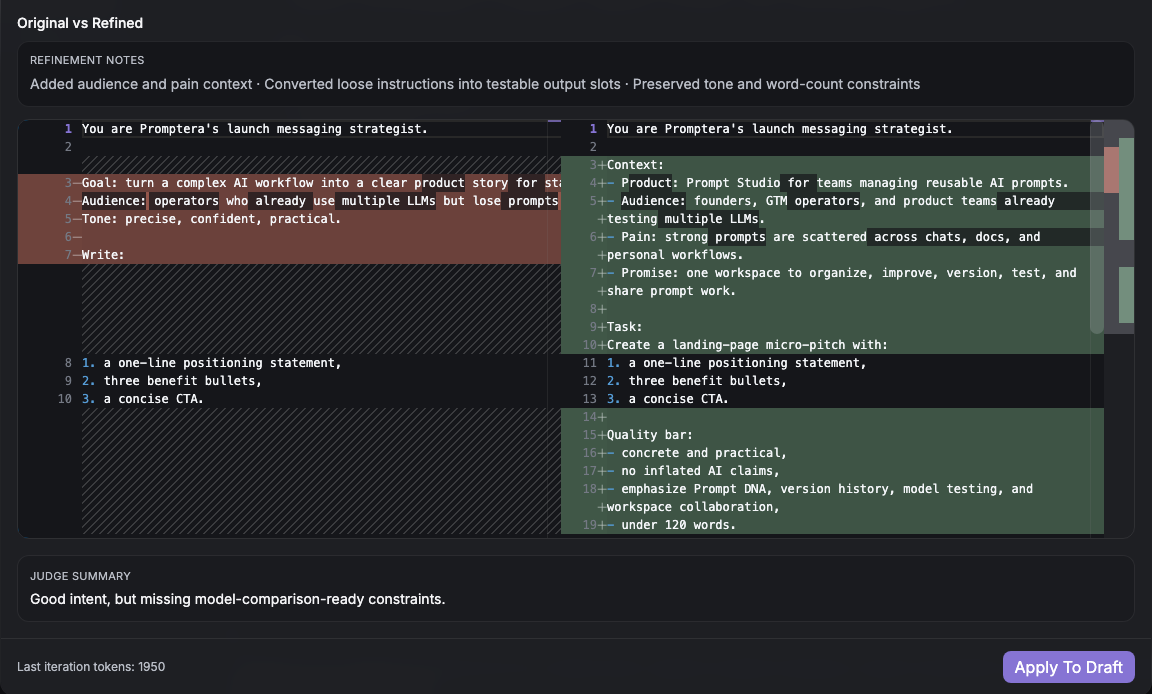
How to optimize a prompt in Studio
Open a draft and choose Enhance
Start with the prompt you want to improve. Add optional guidance about the audience, output format, or anything the rewrite needs to preserve.
Review the suggested rewrite
Read the refinement notes and compare the original and suggested instructions. Check that the rewrite keeps your source material, requirements, and intended task.
Apply, then test
Choose Apply To Draft if you want to use the rewrite. Run the original and revised instructions with the same input and check which response better follows the task before committing your preferred version.
Before and after a prompt rewrite
A launch email is easier to review if the prompt names its reader, specifies the output, and tells the model which product facts it can use.
Original prompt
Write a short launch email for our new feature. Make it clear and professional.
Example rewrite
Write a launch email for existing customers from the release notes below. Include a subject line, a two-sentence intro, and three benefit bullets. Keep the body under 150 words. Use only facts from the release notes.
Test both prompts with the same release notes. Check whether the response sticks to the supplied facts, follows the requested structure, and makes sense to the reader.