
Prompt Versioning
Keep a history of the prompts your team relies on. Save revisions, see exactly what changed, and restore an earlier version to your draft in Promptera Studio.
Start for Free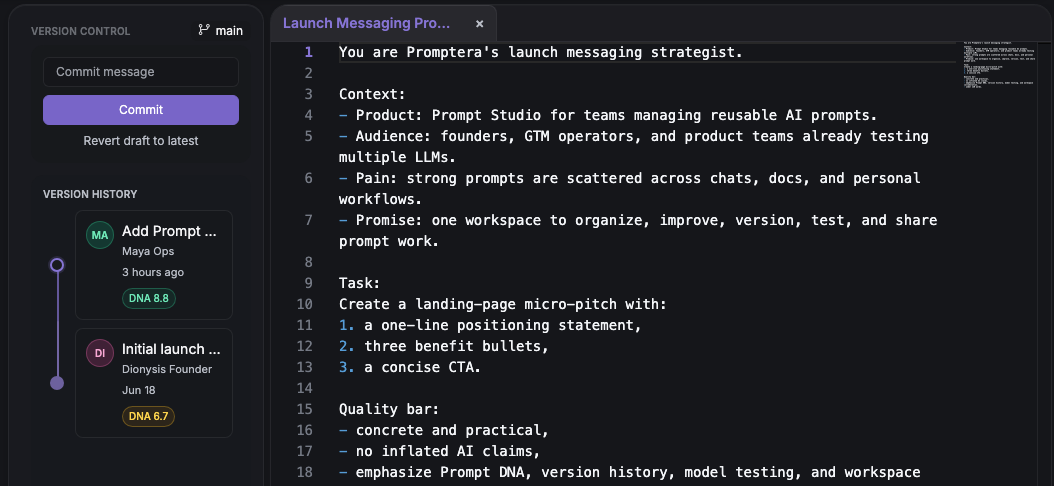
How to version a prompt in Studio
Commit a working prompt
Open Versions and add a short commit message that explains why this version is worth keeping. Continue editing in the draft while the committed version stays in history.
See what changed
Open a saved version and choose the current draft or another saved version to compare. The diff shows which lines changed, so you can check the wording before running a test.
Restore an earlier version
Select Restore as draft to bring that prompt back into the editor. Run it with the same input to check the result, then commit the draft if you want to record it as a new revision.
What changed in this launch prompt?
A team needs the same kind of launch brief every week. They add an audience, a word limit, and a consistent structure, then use the diff to check that the original task is still there.
Earlier version
Write landing-page copy for this launch. Include a headline, three benefit bullets, and a call to action.
Current draft
Write landing-page copy for operations leads evaluating an AI workspace. Include a headline, three benefit bullets, and a call to action. Keep the copy under 120 words.
If the new draft cuts out details the team needs, restore the earlier version and adjust the word limit. The previous wording is still there to compare against.